This page takes you from nothing to a first finished job. It takes about 10 minutes. You need a terminal on the machine that will run it and a GitHub account.
Recommended: run it with Podman, from the published container image. Nothing is installed on the machine but Podman. It works on any Linux, and on Windows inside WSL (On Windows). The other way, installing it on the machine itself, is below.
Then: sign-in for a team · upgrade · uninstall · on Windows · install on the machine itself · when something goes wrong · more
Run it with Podman (recommended)
hopper and its database, in containers from the published image
ghcr.io/henningfutrell/hopper. Nothing is installed on the machine but Podman, nothing is built,
and the containers run as your user, not as root. Jobs run on the machines you add, not in the container. Run every command as your own user, in one folder.
Get Podman, version 4.7 or later, with
podman-compose, from your package manager:sudo apt-get install -y podman podman-compose
That is Debian and Ubuntu. Fedora:
sudo dnf install podman podman-compose. Arch:sudo pacman -S podman podman-compose. Others: podman.io/docs/installation. Check withpodman --version.Get the compose file and start it, in a folder of its own. The first start downloads the image, which takes a minute or two:
mkdir hopper && cd hopper
curl -fsSLO https://henningfutrell.github.io/hopper/compose.yaml
podman compose up -d
Run the later commands in this folder too. You can read the file first: compose.yaml. Docker works the same:
docker composein place ofpodman compose.Open the UI and sign in with GitHub. Open
http://localhost:4790/and press Sign in with GitHub. The first person to sign in with GitHub is the admin, so sign in yourself before anyone else can reach the UI. There is no starting account or password to look up. The UI listens on this machine only. From another computer, connect withssh -L 4790:127.0.0.1:4790 you@your-serverfirst, then openhttp://localhost:4790/there.
What a signed-out browser sees. Sign in to Claude Code. Once is enough: it is kept when the hopper restarts or upgrades. GitHub needs nothing more: signing in with GitHub in the step before connected it, and the hopper reads your issues through that connection.
Claude Code, inside the hopper's container:
podman compose exec hopper claude
In Claude Code, type
/login, follow it, then/exit. Then say who jobs commit as:podman compose exec hopper git config --global user.name "Your Name"
podman compose exec hopper git config --global user.email you@example.com
Keep it running after a reboot. The containers restart by themselves while Podman runs; these two make your user's containers start when the machine does. Once:
systemctl --user enable podman-restart.service
sudo loginctl enable-linger "$USER"
Then give it its first job. Upgrade, stop and remove: Upgrade, Uninstall. Settings, a reverse proxy and secrets: docs/deploy.md.
Give it its first job
Pick a repository. Use a repository on GitHub you can write to. Jobs run on the machines attached to the hopper (the container is not one): add one with Add machine in the UI's Machines view, and keep a clone of the repository there.
Choose it for jobs. In the UI, open Sources, and under GitHub account tick the repository and press Save. The hopper takes jobs only from the repositories chosen there, and only from issues you opened. Nothing to restart. If the repository is not listed, the hopper's app is not installed on it: the panel links to install it on your account or an organization (github.com/apps/hopper-qm), where you pick the repositories it may reach. It asks to read and write issues, pull requests and contents, and to read metadata; nothing else.
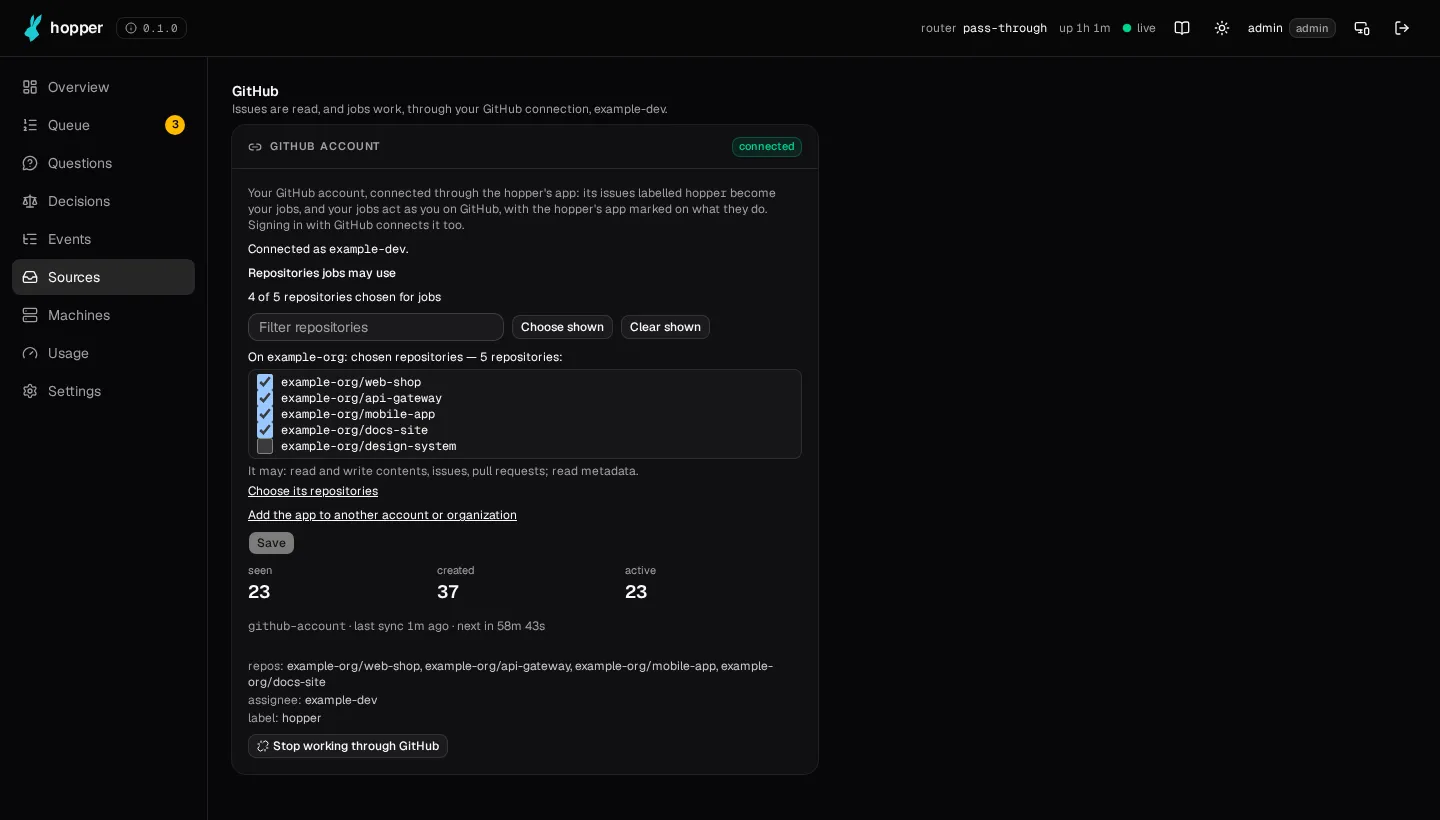
Sources → GitHub account: tick the repositories, then Save. Where a job runs: the machine's work tree, unless you set
repoPathson thegithub-accountsource (Settings → Plugins → Job sources), for example{ your-login/your-repo: ~/your-repo }.Create the
hopperlabel in the repository, once: on GitHub (Issues → Labels → New label), or with the GitHub CLI on your own computer:gh label create hopper -R your-login/your-repo
Open an issue with the label
hopper. The issue text is the job's instructions. A small first job works best, for example "Add a line to README.md saying this repository is a test."Watch it. hopper checks GitHub every minute, so the job starts within a minute. The issue's labels show where it is:
Label Means hopper:claimedit is running; the UI's board shows it hopper:doneit finished, and the issue is closed hopper:failedit failed; remove this label to run it again 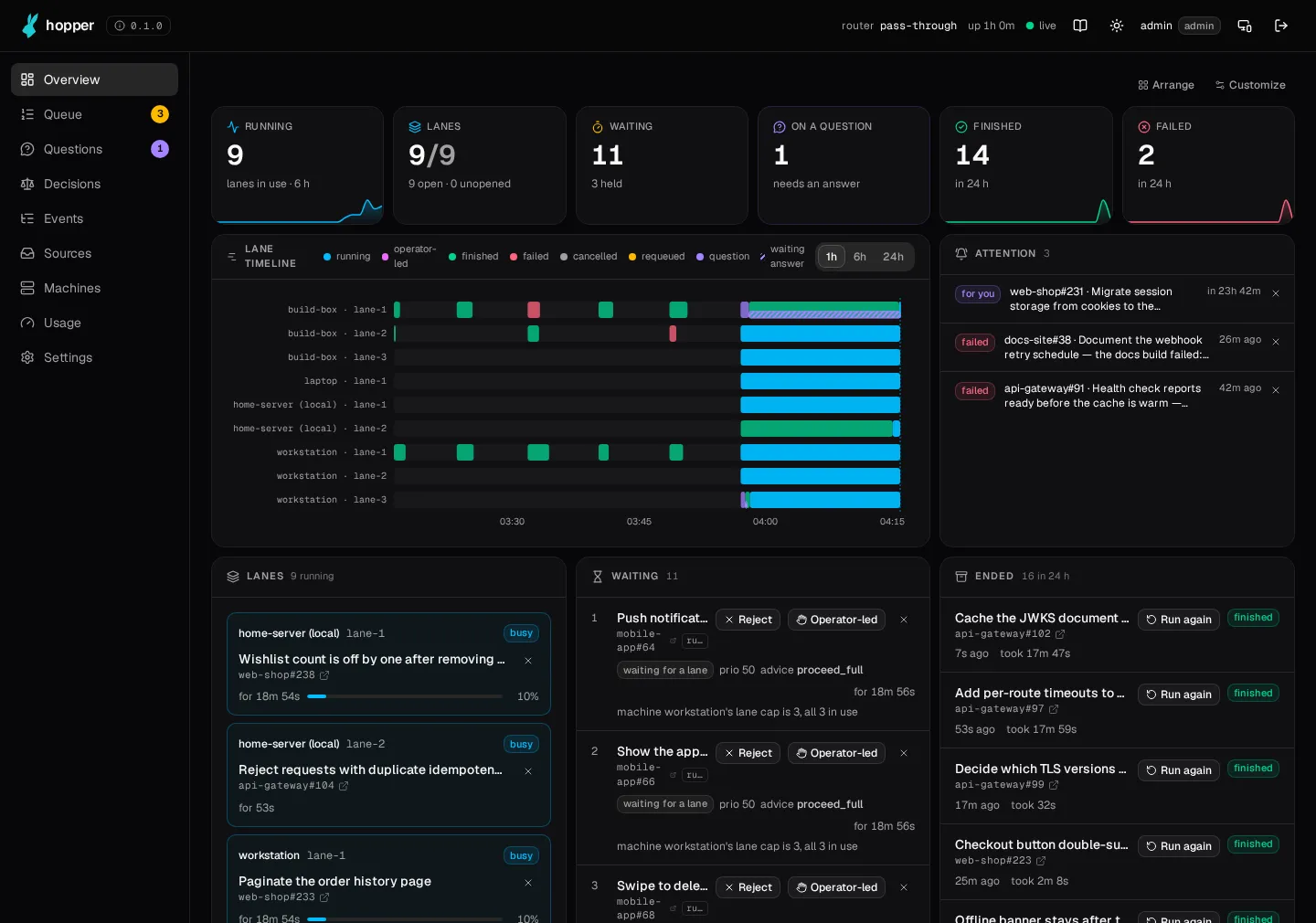
The overview once it has work: every lane, what waits, and what just ended. When a job asks something it cannot answer for itself, the question waits for you in the UI's Questions view.
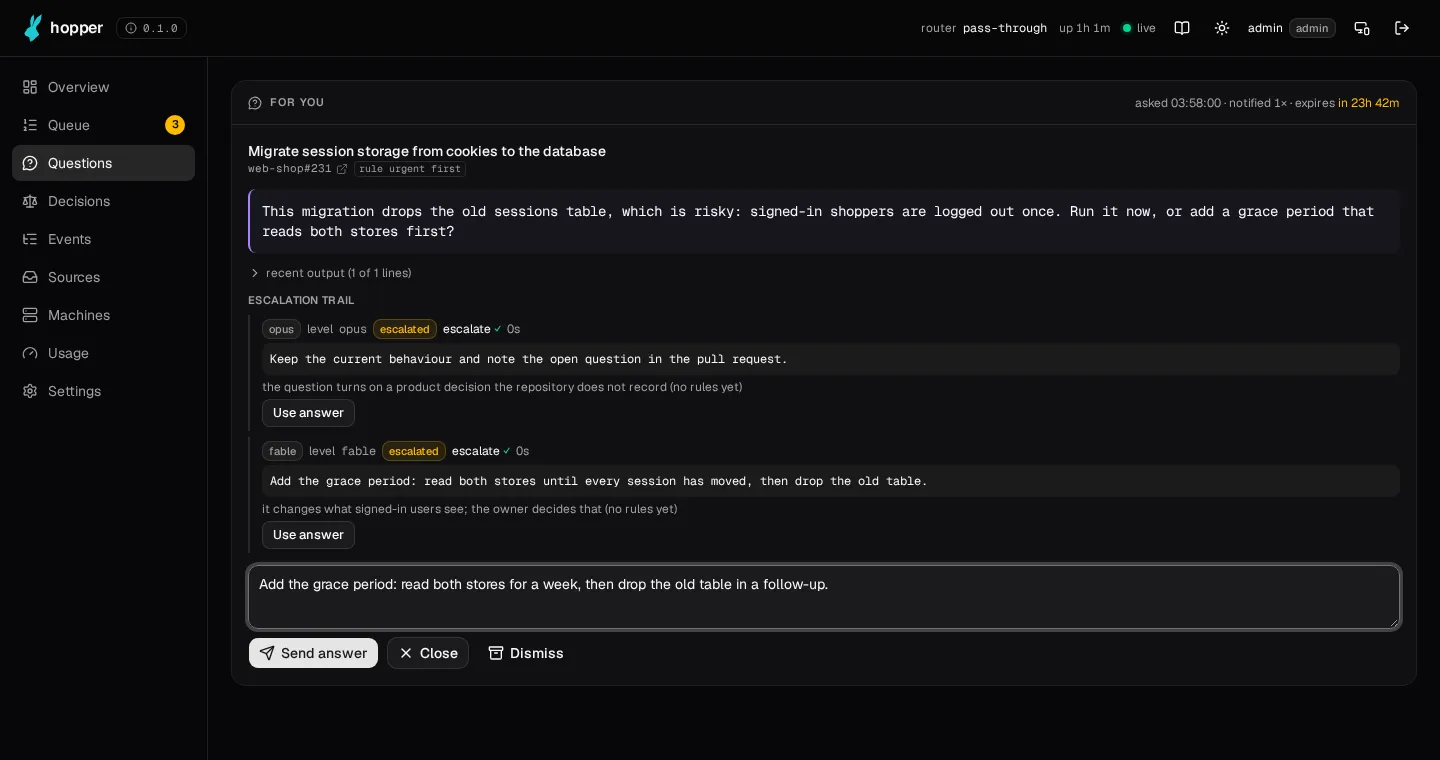
A question that waits for you, with what each escalation level suggested.
Installed on the machine itself? Its first step
Jobs run on this machine. Keep a clone of the repository here (for example
git clone https://github.com/your-login/your-repo ~/your-repo), then choose the repository in
Sources as above, and set repoPaths to
{ your-login/your-repo: ~/your-repo } on the github-account source (Settings →
Plugins → Job sources) so its jobs run in that clone.
That is the whole loop. From here, label any issue hopper to hand it over. hopper:high
and hopper:low change its priority; hopper:backburner keeps it waiting.
Or: install it on the machine itself
hopper as two background services for your user, with its database in Docker, and jobs running directly on this machine. Linux with systemd (Ubuntu, Debian, Fedora, Arch and most others), or WSL. Not yet macOS. It takes about 15 minutes, most of it the install building itself. Then give it its first job, with the commands for the machine itself.
1. Get what it needs
Do this on the machine that will run hopper, as the user it will run as (not root). First see what is there already:
for c in git /usr/bin/node npm curl systemctl gh claude docker ~/.local/bin/herdr; do command -v $c >/dev/null && echo found: $c || echo MISSING: $c; done; /usr/bin/node --version
Then install whatever it says is missing:
| Program | What it is for | How to get it |
|---|---|---|
| git, curl | fetching the source | your package manager, for example sudo apt install git curl |
Node.js 24 or later, with npm, at /usr/bin/node | runs hopper | A system-wide install: the service runs /usr/bin/node, so a Node.js from nvm or fnm will not do. Your package manager if it has version 24, else the NodeSource packages (other ways: nodejs.org/en/download). /usr/bin/node --version must print v24 or higher |
| systemd | keeps hopper running in the background | already there on most Linux systems. systemctl --user status must not print an error |
| Docker, with compose | runs the database for you | docs.docker.com/engine/install, then let your user use it without sudo (post-install steps). Not needed if you have a Postgres database of your own (see below) |
| herdr | the terminal panes jobs run in | curl -fsSL https://herdr.dev/install.sh | sh — installs to ~/.local/bin/herdr, where hopper looks for it. About herdr: herdr.dev |
Claude Code (claude) | does the work of each job | curl -fsSL https://claude.ai/install.sh | bash, then run claude once and sign in. Details: Claude Code setup |
GitHub CLI (gh) | lets jobs open pull requests and push; it acts with the GitHub token the hopper gives each job, so it needs no sign-in of its own | cli.github.com. GitHub itself is connected at step 5 |
Run the check again until everything says found (docker may stay missing if you use your own Postgres).
2. Install
curl -fsSL https://henningfutrell.github.io/hopper/install.sh | bash
It prints each step as ==> … and takes a few minutes. It worked when the last lines show a
health line and UI: http://127.0.0.1:4790/. If it stops with a message instead, find
the message under When something goes wrong.
You can read the script first: install.sh (the same file as
scripts/get.sh in the source).
What the install does
- checks for git, Node.js 24 or later, npm and systemctl, and stops with a reason if one is missing;
- downloads the source to
~/.local/share/hopper/source; - starts a Postgres database in docker on
127.0.0.1:5433, with a new random password; - installs hopper to
~/.local/lib/hopperand thehoppercommand to~/.local/bin; - writes the settings file
~/.config/hopper/daemon.env, readable only by you (it holds the database password); - starts two background services for your user:
hopperandhopper-herdr.
Nothing is installed system-wide and nothing runs as root. The web UI listens on this machine only
(127.0.0.1:4790).
Use your own Postgres instead of docker
Give its address in front of bash. The database must exist and be empty or the hopper's own:
curl -fsSL https://henningfutrell.github.io/hopper/install.sh | HOPPER_DATABASE_URL=postgres://user:password@host:5432/hopper bash
Other install settings
Set them in front of bash, the same way:
| Variable | Default | What it sets |
|---|---|---|
HOPPER_SOURCE_REF | main | the branch to install and to update from |
HOPPER_SOURCE_REPO | this repository | where to download the source from (your fork, for example) |
HOPPER_SRC | ~/.local/share/hopper/source | where the source is kept |
POSTGRES_PORT | 5433 | the port of the docker Postgres, on this machine only |
3. Keep it running
Services for your user stop when you log out, unless you allow them to stay. Allow it once:
sudo loginctl enable-linger "$USER"
Then check both services:
systemctl --user status hopper hopper-herdr
Both must say active (running). Press q to leave. If one does not,
see When something goes wrong.
4. Open the UI
On the machine itself, open http://localhost:4790/ and press Sign in with GitHub.
The first person to sign in with GitHub is the admin, so sign in yourself before anyone else can reach the
UI. There is no starting account or password to look up.
From another computer (a server with no browser).
The UI listens on the server only, so reach it through ssh. On your own computer, connect with a tunnel and leave this terminal open:
ssh -L 4790:127.0.0.1:4790 you@your-server
Then open http://localhost:4790/ in the browser on your own computer and sign in with GitHub. Passwords, other people and other devices:
docs/sign-in.md.
5. Connect GitHub
Signing in with GitHub at step 4 connected it: hopper reads your issues and sets their labels through that connection, and gives each job its GitHub token. Choose which repositories jobs may come from in the UI: Sources → GitHub account. If the panel says sign-in expired, press Connect GitHub again.
On Windows
hopper runs inside WSL (the Linux that comes with Windows 10 and 11).
Open PowerShell as administrator and install Ubuntu in WSL:
wsl --install -d Ubuntu-24.04
Restart Windows if it asks. Then open Ubuntu from the Start menu and choose a user name and password. Every command below runs in that Ubuntu window, not in PowerShell, unless it says so.
Install Podman in Ubuntu:
sudo apt-get update && sudo apt-get install -y podman podman-compose
Continue with Run it with Podman from step 2, in Ubuntu. The sign-in link opens in your Windows browser: WSL passes
127.0.0.1through to Windows.
WSL stops Ubuntu, and hopper with it, soon after you close the last Ubuntu window.
Keep one Ubuntu window open while jobs run, and run podman compose up -d in the hopper's folder
after you open it again.
Install it on the machine itself in WSL instead
Check that systemd runs:
systemctl --user status
If it says
System has not been booted with systemd, turn systemd on:printf '[boot]\nsystemd=true\n' | sudo tee -a /etc/wsl.conf
Then run
wsl --shutdownin PowerShell, open Ubuntu again, and check again.Install git, Node.js 24, Docker and the GitHub CLI in Ubuntu. Node.js comes from NodeSource, so it is at
/usr/bin/node:curl -fsSL https://deb.nodesource.com/setup_24.x | sudo -E bash - sudo apt-get install -y git nodejs docker.io docker-compose-v2 gh sudo usermod -aG docker "$USER"
Close Ubuntu and open it again, so that you can use docker. Then install herdr and Claude Code as step 1 says, sign in to
claude, and run the check from step 1.Install hopper with the same command as on Linux:
curl -fsSL https://henningfutrell.github.io/hopper/install.sh | bash
Open
http://localhost:4790/in your Windows browser and sign in with GitHub. WSL passeslocalhostthrough to Windows.Continue with step 5, Connect GitHub, in Ubuntu, and then step 6.
Keep the repositories jobs work in inside Ubuntu (for example ~/src), not under
/mnt/c: it is much faster.
Sign-in for a team
Alone on one machine, signing in with GitHub is enough. For a team, or a hopper reached over the internet, people
sign in through your own sign-in service, set up from the hopper's environment: no clicks and no files. Put the
variables in .env beside compose.yaml (with Podman) or in
~/.config/hopper/daemon.env (on the machine itself), and restart the hopper.
| You have | People sign in |
|---|---|
| An auth gateway in front (Envoy Gateway with OIDC, oauth2-proxy) | through the gateway; the hopper only checks the token it forwards |
| OIDC single sign-on (Google, Microsoft Entra ID, Okta, Auth0, Keycloak) | with a button that sends them to your provider |
| SAML (Entra ID, Okta, Keycloak, ADFS) | with a button that sends them to your provider |
| A directory: LDAP or Active Directory | with their directory username and password |
| GitHub accounts | with a button that sends them to GitHub |
Each one is a few HOPPER_SIGN_IN_ variables. What to register at your provider, the variables to
copy, and how to check it works:
docs/deploy.md, Sign-in set up at launch.
However they sign in, each person then connects their own GitHub inside the hopper, from the UI.
Upgrade
With Podman: in the hopper's folder, download the newest image, restart on it, and remove the image it replaced. It keeps your settings, database and sign-ins. It ends the jobs running at the time, so upgrade when none runs.
podman compose pull && podman compose up -d && podman image prune -f --filter label=org.opencontainers.image.title=hopper
On the machine itself: run the install command again. It updates hopper and keeps your settings, database and running jobs. The UI also tells you when an update is out, says what is new, and can apply it for you.
Uninstall
With Podman: in the hopper's folder, stop and remove the containers. Your database and sign-ins are kept:
podman compose down
To delete them too: podman compose down -v.
On the machine itself:
bash ~/.local/share/hopper/source/scripts/uninstall.sh
This stops the services, closes running jobs, and removes the installed program. It keeps your data: the database,
~/.config/hopper and the source in ~/.local/share/hopper.
Delete those yourself if you want them gone. The docker database also stays; to delete it and its data:
docker rm -f hopper-postgres-1 && docker volume rm job-hopper_postgres.
When something goes wrong
With Podman
| It says | Do this |
|---|---|
unrecognized command "podman compose" | Your Podman is older than 4.7. Run podman-compose (with a hyphen) in place of podman compose, or install a newer Podman. |
looking up compose provider failed | Install podman-compose (step 1). |
failed to connect to the docker API at unix:///run/user/…/podman/podman.sock | Podman found Docker's compose program and uses it, which talks to Podman through its socket. Turn the socket on: systemctl --user enable --now podman.socket. Or use the other one: PODMAN_COMPOSE_PROVIDER=podman-compose podman compose up -d. |
| The UI does not open | See whether both containers run: podman compose ps. Read why the hopper stopped: podman compose logs hopper. |
A job fails with … is PowerShell, and the hopper needs a POSIX shell | The machine is a Windows computer whose jobs open in PowerShell. Give its hopper session Git Bash as the shell: A Windows computer. |
A job is hopper:failed at once | Its folder in repoPaths may not exist on the machine that ran it, or claude is not signed in: step 4. The job in the UI says why it failed. |
Everything else is the same as on the machine itself, below, with podman compose exec hopper in front of
hopper commands.
The install on the machine itself stops
| It says | Do this |
|---|---|
needs node on PATH (or git, npm, systemctl) | Install it (step 1), open a new terminal, run the install again. |
needs Node.js >= 24 | Your Node.js is too old. Install a newer one from nodejs.org, open a new terminal, check node --version. |
needs systemd running for this user | On Windows, turn systemd on in WSL: On Windows, step 2. On Linux, log in to a normal session (not su or a bare container shell). |
no database | Install docker, or give a Postgres address as in Use your own Postgres. |
permission denied … docker.sock | Your user may not use docker yet. Follow docker's post-install steps, log out and back in, run the install again. |
the docker volume job-hopper_postgres exists | An earlier install left its database. Give its address with HOPPER_DATABASE_URL, or delete it with docker volume rm job-hopper_postgres (this deletes its data) and run the install again. |
… has local changes | Someone edited the downloaded source. Undo the changes there, or set HOPPER_SRC to another folder. |
did not answer /api/health | hopper did not start. Read why with journalctl --user -u hopper -n 50. |
After the install on the machine itself
| What you see | Do this |
|---|---|
hopper: command not found | Add ~/.local/bin to your PATH (open a new terminal; many systems add it when it exists), or run ~/.local/bin/hopper. |
hopper-herdr is failed | herdr is missing from ~/.local/bin/herdr. Install it (step 1), then systemctl --user restart hopper-herdr. |
hopper is not running | Read why: journalctl --user -u hopper -n 50. If it says /usr/bin/node is missing or too old, install Node.js system-wide (step 1), then systemctl --user restart hopper. |
| The services are gone after you log out | Do step 3, then systemctl --user start hopper-herdr hopper. |
| The UI does not open, or asks you to sign in | Open http://localhost:4790/ and sign in with GitHub. From another computer, use the ssh tunnel. |
| A labelled issue is not picked up after a few minutes | Check: it is assigned to you; its repository is chosen under Sources → GitHub account; the label is exactly hopper. The UI's Sources view shows whether the GitHub source is running or paused, and why: not connected or sign-in expired means sign in with GitHub again. |
A job is hopper:failed at once | Its folder in repoPaths may not exist, or claude is not signed in: run claude once. The job in the UI says why it failed. |
Still stuck? Open an issue with the message you see.
More
- Add machines: run jobs on other computers too, or in a sandbox container.
- Routing rules: send some jobs to one machine.
- docs/deploy.md: every install path in detail.
- The README: everything else.